¶ Admin Panel
The Admin Panel is a resource for managing your virtual worlds and platform.
It consists of several sections that provide the necessary management tools.
We will discuss each section in detail below.
¶ My Subscriptions
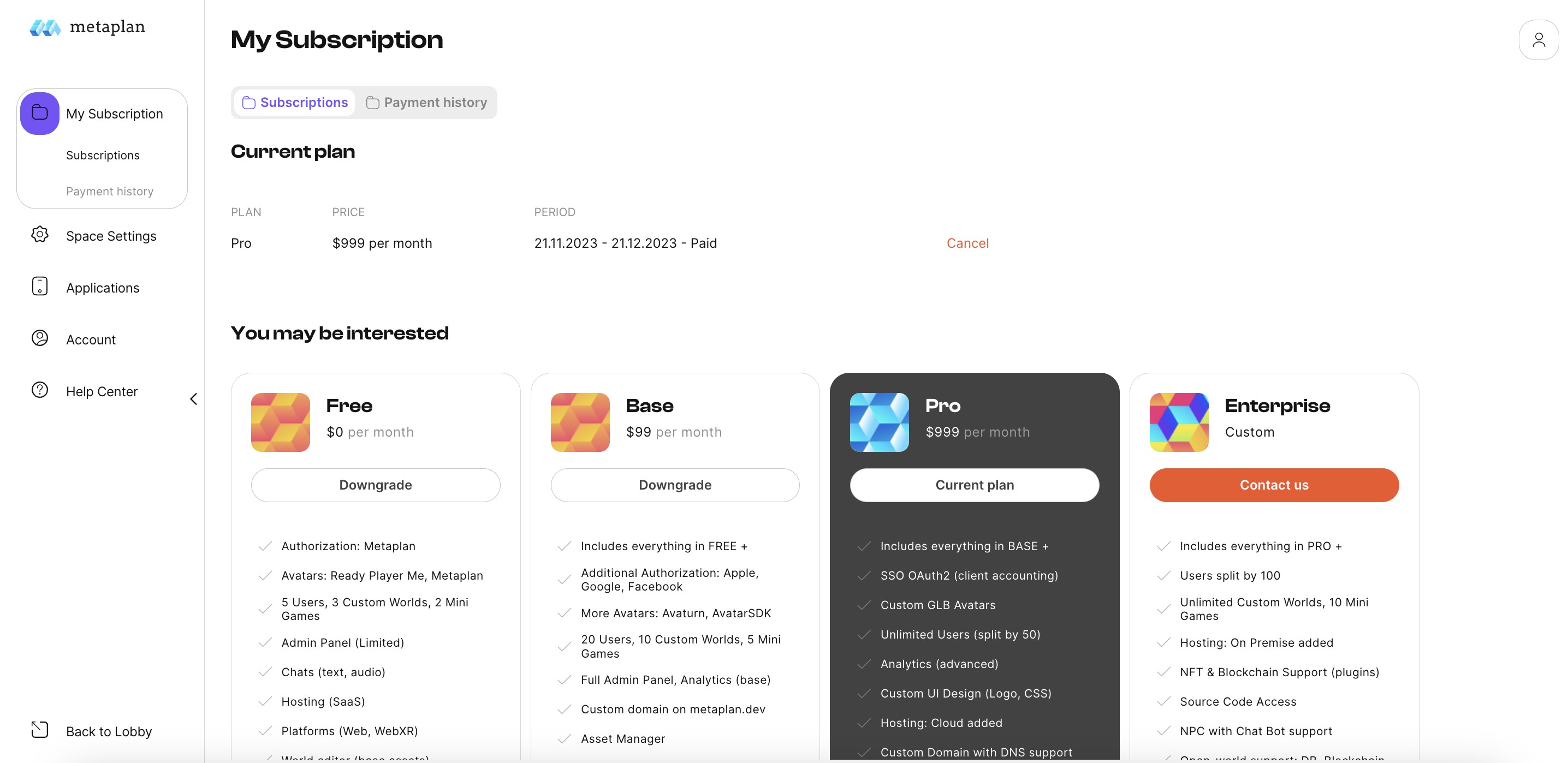
The My Subscriptions section provides an overview of your current subscription plan,
all available subscription types, and your payment history.
You can also cancel your subscription or switch to another plan from this section.
¶ Space Settings
Preferences is a comprehensive section that allows you to manage and customize your
environment. This section is available with all paid plans and is divided into several subsections:
¶ Design
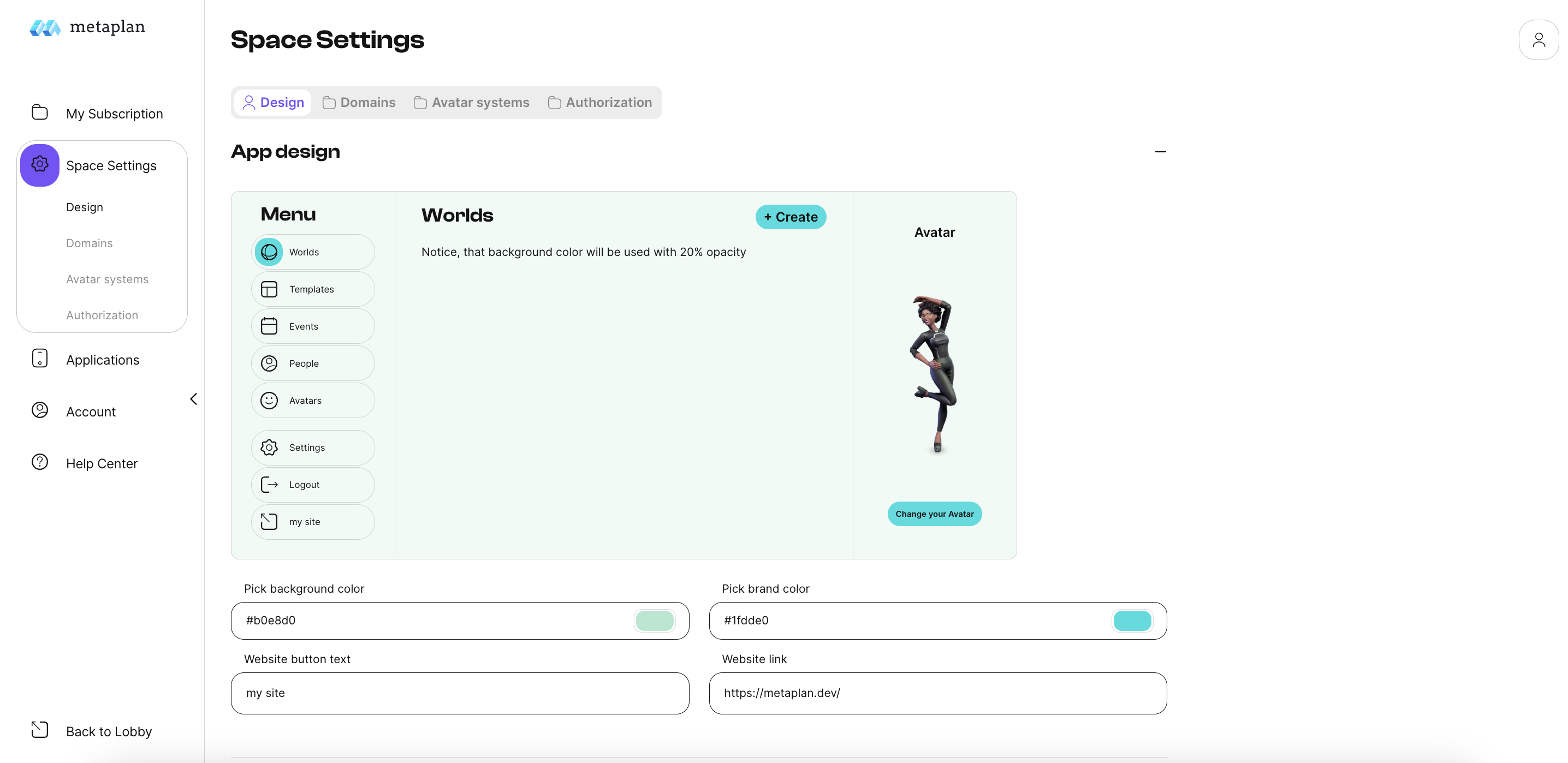
The Design subsection allows you to customize the look of your platform - the 2D lobby.
Just upload the logos and images you want, choose the color of the background and buttons,
or control the layout of the menu items.
You can see all the changes in the viewer on the right.
Background color- changes the background color in the lobby
Brand color - changes the color of the menu buttons
Website button text - changes the text on the button that allows you to go to an external site
(you can add any link in the settings below).
¶ Auth Design:
In this section, you can customize the appearance of the authorization page.
You can see all changes in the preview window on the right.
Authorization logo - changes the logo on the authorization page.
Authorization background image - changes the image on the left side of the login page.
Text color- changes the color of the title text and changes the color of the text below.
Authorization page title - changes the main text of the page.
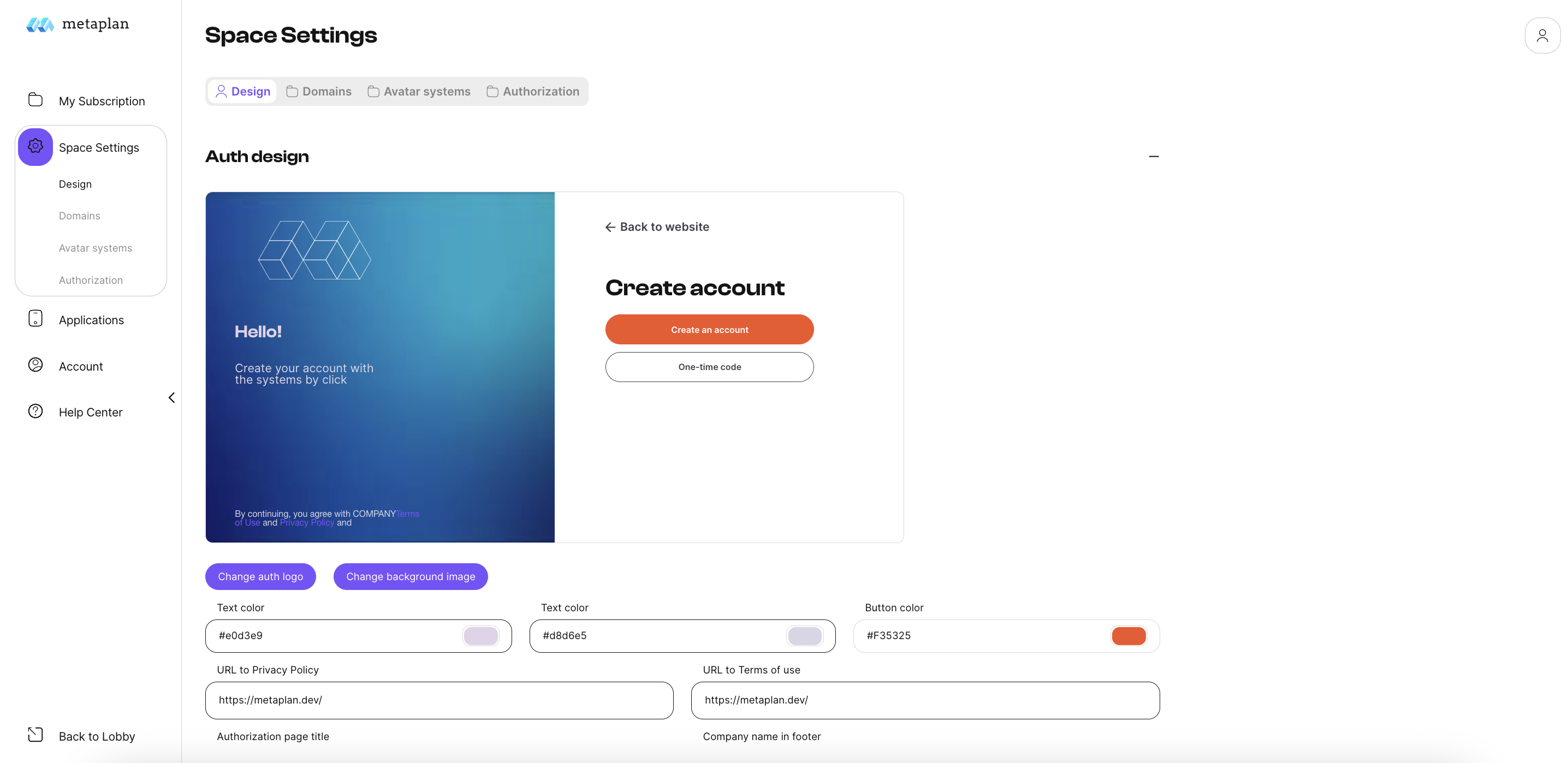
URL to Privacy Policy- add a link to your policies and the text on the authorization page will change automatically.
URL to Terms of use- add a link to your rules and the text on the approval page will change automatically.
Company name in footer - adds your company name to the text at the bottom of the page (information about policies and terms of use)
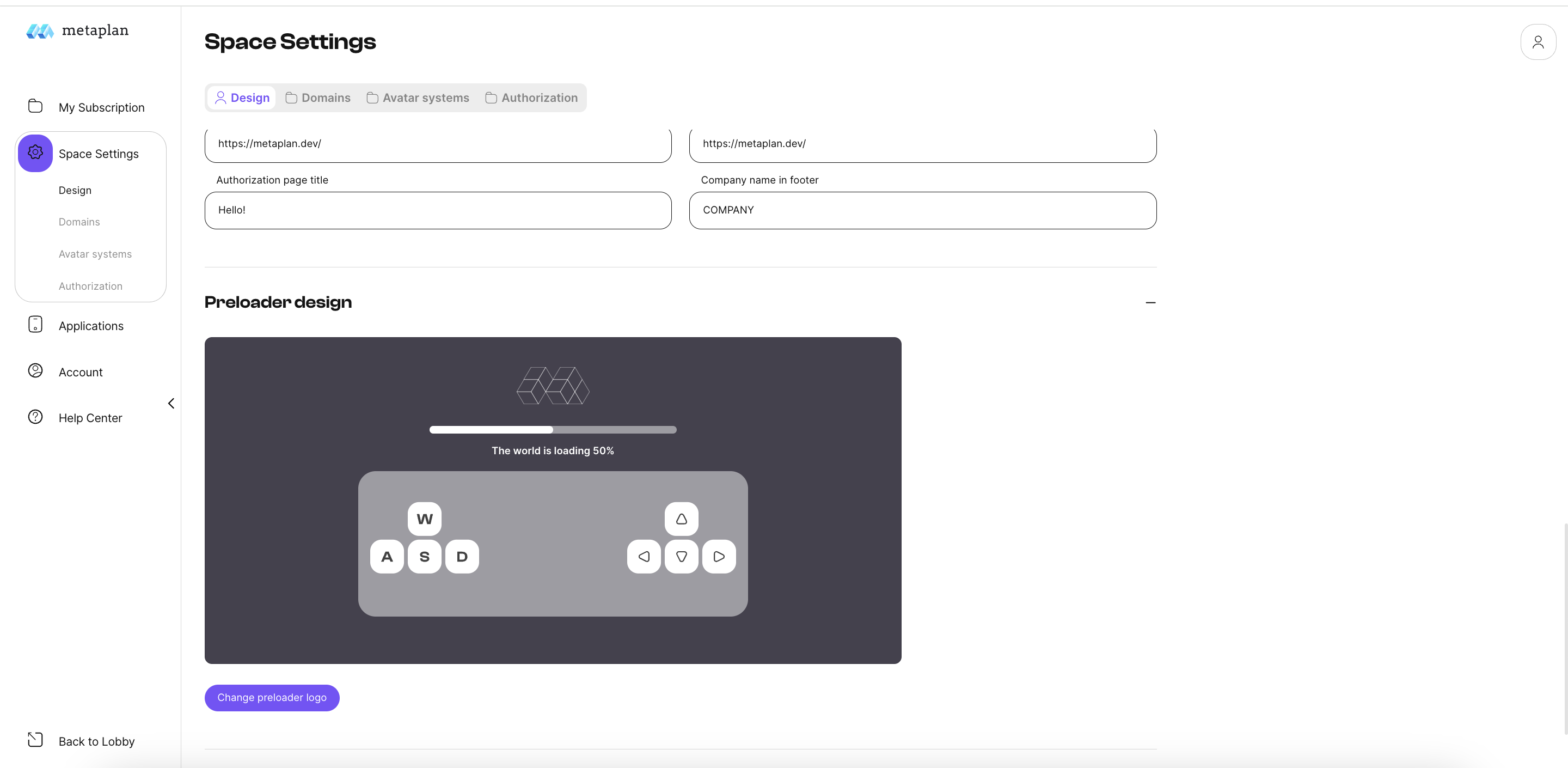
¶ Preloader design:
This section contains preloader for your worlds:
¶ Domains
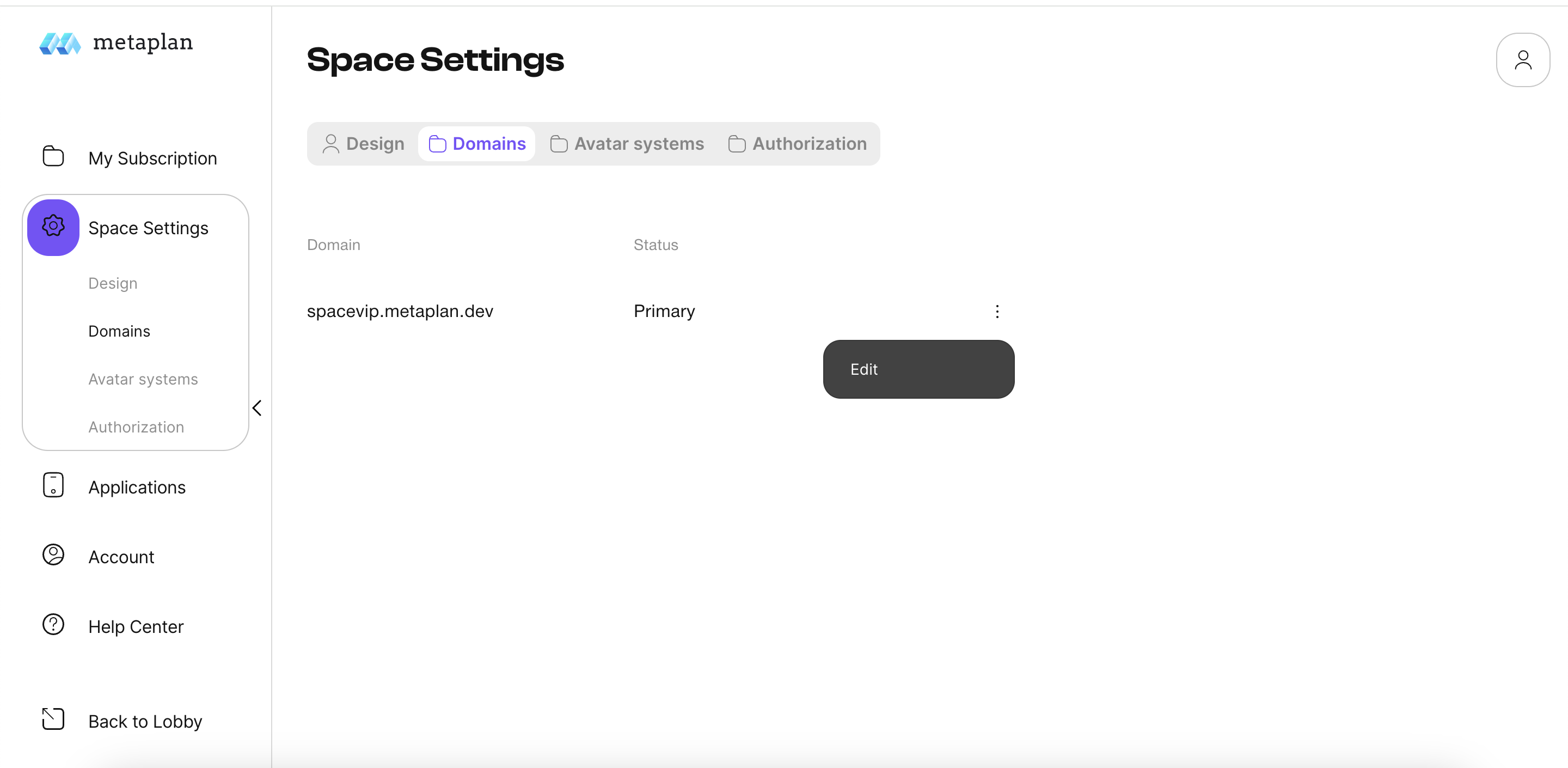
The Domains subsection allows you to manage the domain names for your virtual worlds.
¶ Avatar Systems
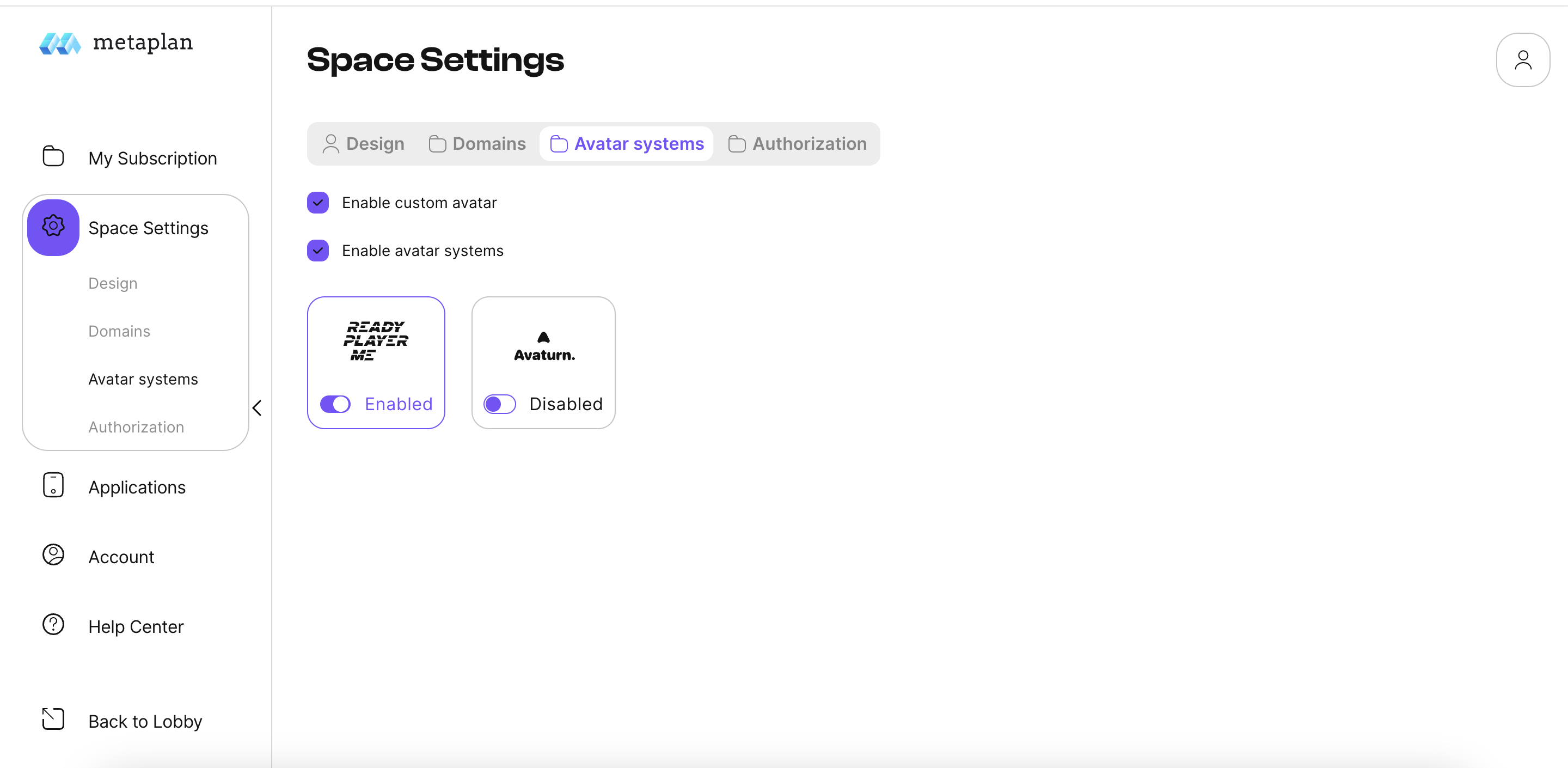
The Avatars subsection allows you to manage the parameters of the avatar, the animation
and the integration of different avatar systems. Enable or disable avatar systems as needed.
¶ Authorization
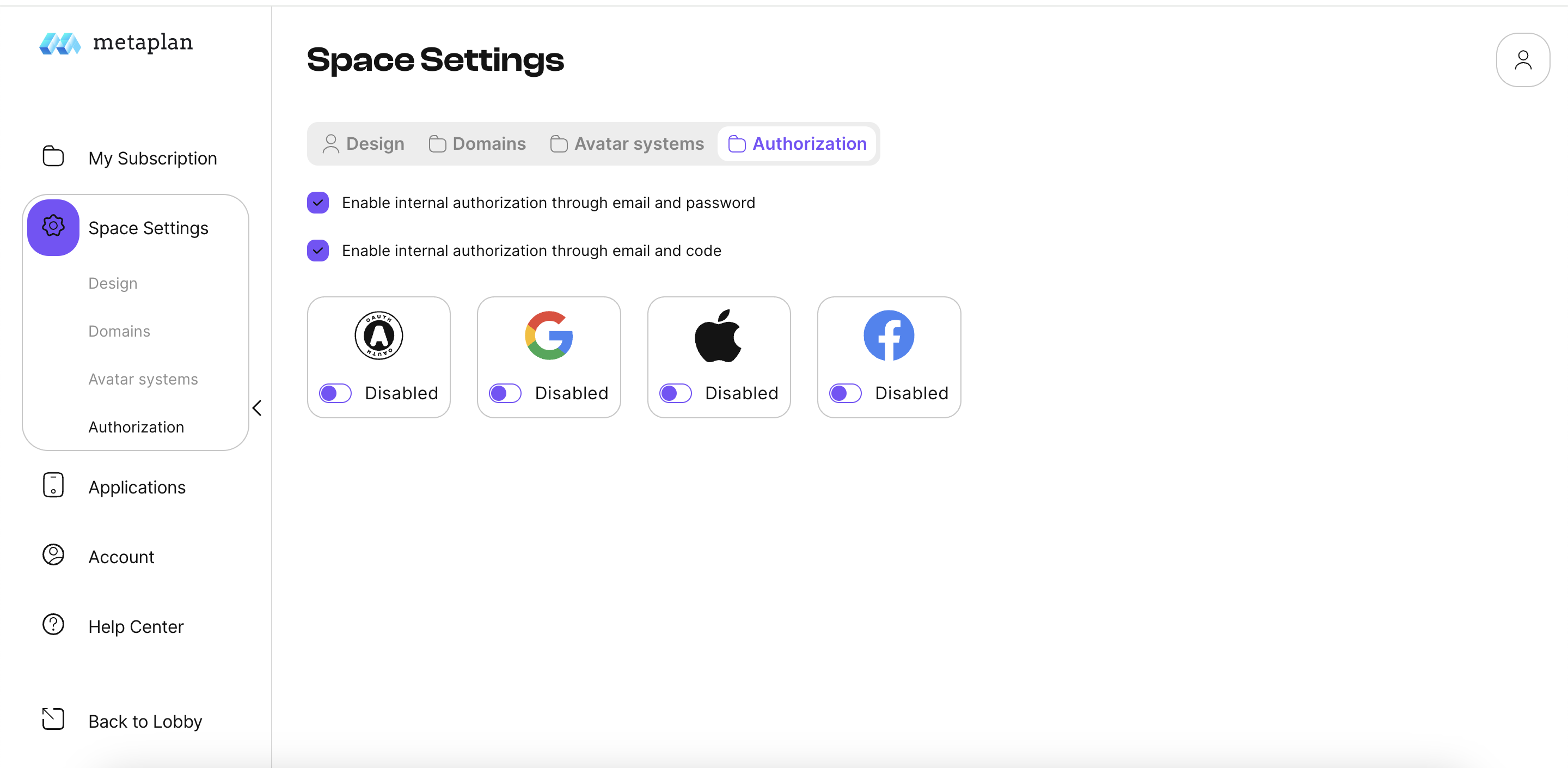
The Authorization subsection allows you to select and configure settings for user authentication.
Choose from popular third-party services such as Facebook, Google, Apple
or integrate your own authentication system.
¶ Account Section
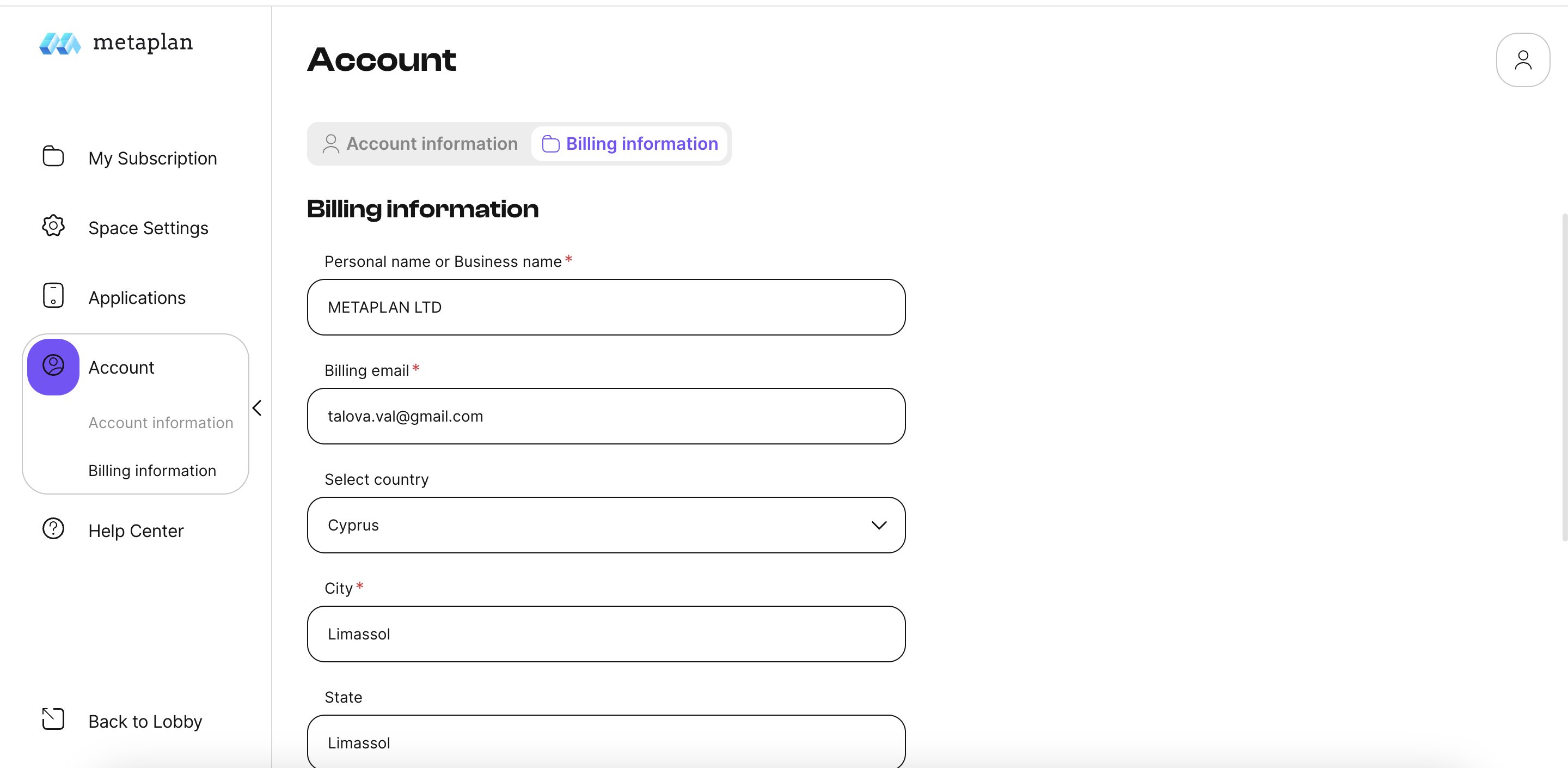
Account Section
This section includes the Accounts information which takes you to the page where you can manage your personal information.
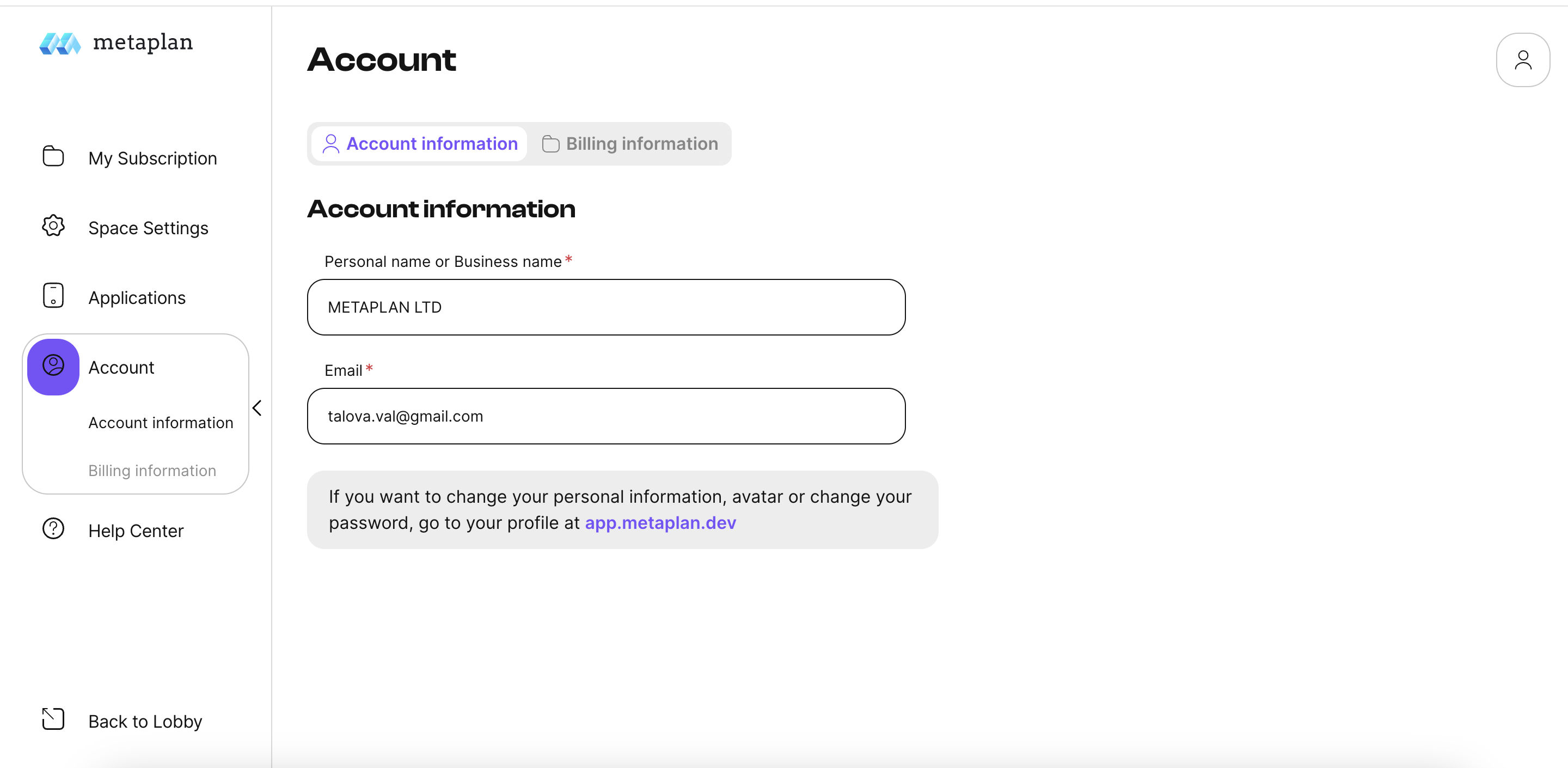
and Billing information, where you can add/update billing information and add an email address to receive invoices.

¶ PWA
Progressive Web Application (PWA)
What is PWA?
Progressive Web Application (PWA) is a type of web application that offers advanced features similar to mobile applications. They can work offline, send push notifications, and load on the device's home screen, providing a user experience similar to native apps.
Steps to create a PWA:
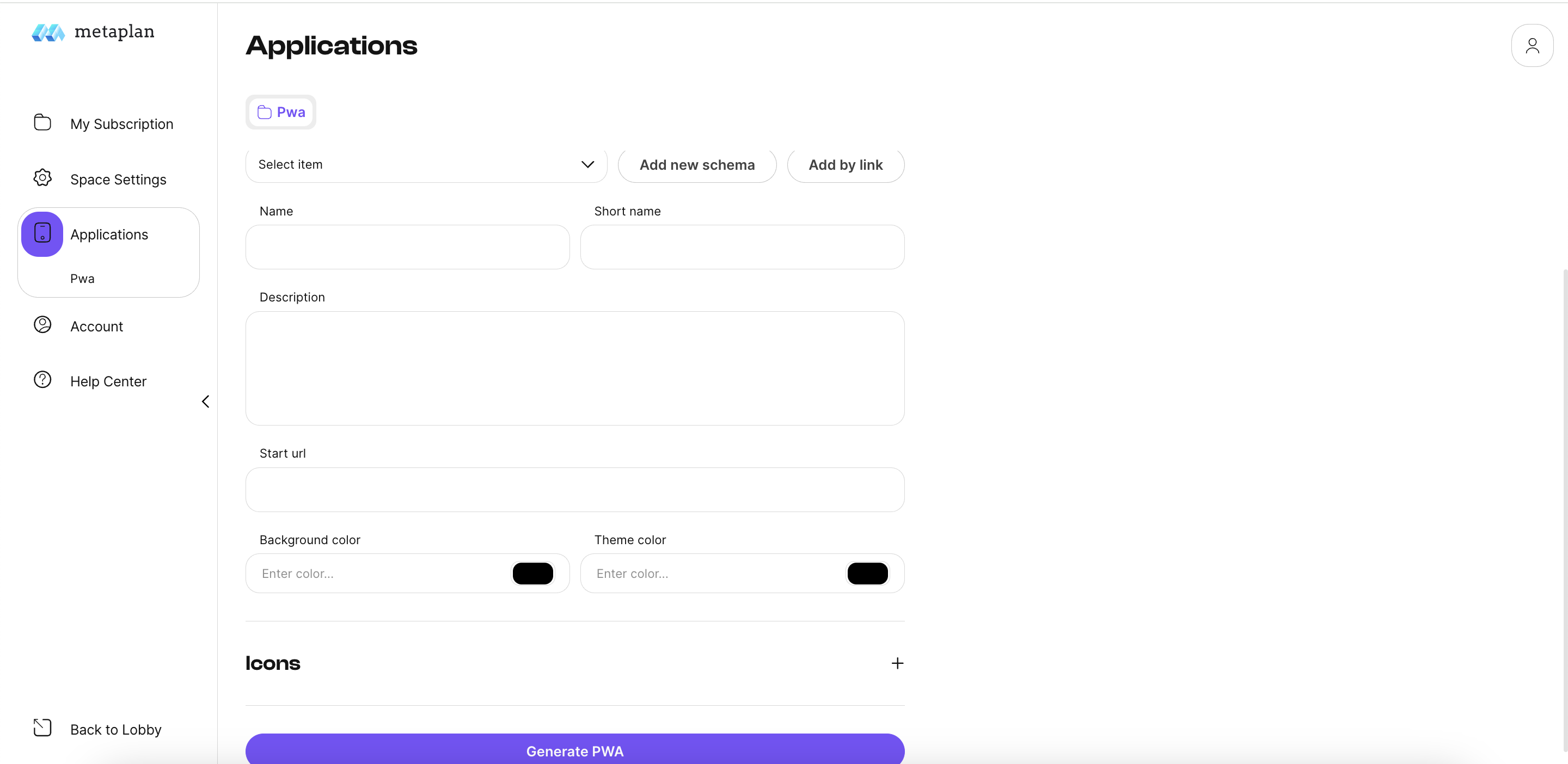
- Enable PWA: Enable PWA functionality by selecting the "Enable PWA" option.
- Schema: Add a new schema or use an existing one.
- Set up basic parameters: Specify the title, short title, and description of your PWA.
- Start URL: Specify the start URL for your PWA.
- Colors: Select a background and theme color.
- Add Icons:
- 1024px Icon: Upload an icon with a size of 1024x1024 pixels. This icon is used for the largest screens and should be of high quality.
- 512px Icon: A 512x512 pixel icon is used on standard screens, including some mobile devices.
- 192px Icon: A small 192x192 pixel icon is ideal for fast loading and is used on lower resolution screens.
- These icons should be visually consistent and represent your brand or PWA functionality.
- Generate PWA: Click "Generate PWA" to complete the creation process.
Once generated, your PWA is ready to use. It can be added to the home screens of devices and used offline.

¶ Help center
This cection redirects you to our Wiki, there is you can find all information about our product.