Welcome to the Metaplan World Builder, your space for building and customizing your virtual worlds
The Add button is your primary tool for adding components to your world. Here's what you can add:
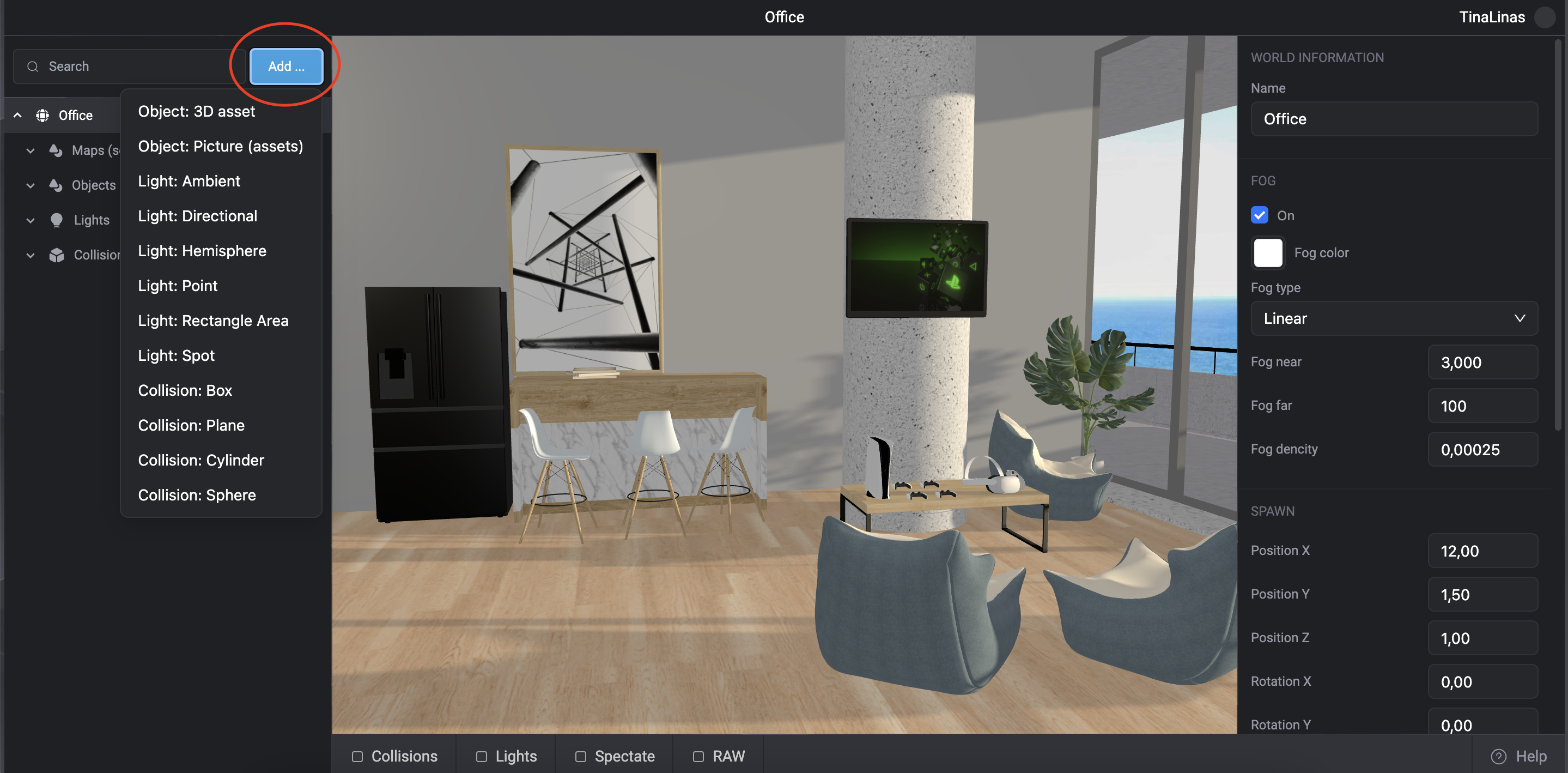
Object - 3D Asset: Use this to add 3D objects to your world, from buildings to trees to intricate sculptures.
Object - Image: If you want to add 2D elements like signs or billboards, use this feature to add images to your scene.
Lighting: Metaplan offers several types of lighting to make your world look just right.
You can choose from the following:
Collision: These elements interact with objects and characters in your world to create a sense of physicality.
They come in a variety of forms:
On the left side of your interface, you'll find a tree-like structure that contains all the components of your world,
including maps, objects, lights, and collisions
Each item in the tree has three buttons
Visibility: Turns the visibility of the item on or off.
Copy: Duplicates the selected item.
Delete: Removes the selected item from your world.
Depending on what you've selected in the tree, you'll have different options in the parameter menu on the right.
Below are the settings you can change for the scene, objects, and lights.
Selecting an item in the tree on the left, or simply clicking on the item on the screen, will open an additional options menu on the right
Name: The name of the object.
Model Hash: A unique code that identifies each object.
Toggle options: Here you can mark the object as static, hidden, locked,
able to cast shadows, able to receive shadows,
animated, and containing environment maps.
Position, Rotation and Scale: X, Y, Z: Change these values to change the object's position, rotation, and scale.
To rotate or resize an object, you can also use the Z, X, C keys.
By selecting a light source, you can also control settings and change parameters:
Name: The name of the light.
On/Off: Turns the light on or off.
Color: Click to open a color palette and select the hue of your light.
Intensity: Adjust this numeric value to change the brightness of the light.
Toggle Options: Allows you to mark the light as static and capable of casting shadows.
Position and Target Position: X, Y, Z: Change these values to change the position and target location of the light.
Shadow: camera near, camera far, camera right, camera left, camera up, camera down - adjust these values to fine-tune the shadow of your light.
ShadowMap Width and Height: these values define the resolution of your shadow.
Shadow radius, shadow skew, shadow normal skew: Use these settings to refine the edges and depth of your shadows.
The Options Menu on the right side of your screen adjusts according to your selection in the stage or tree on the left.
This dynamic menu offers settings for Scenes, Objects, and Lights.
When you select a scene, you'll have access to the following options:
World Information: This section allows you to name or rename your world.
Fog: Use these settings to adjust the scene's atmospheric perspective.
On/Off: Toggles the fog on or off.
**Fog Color: **Choose the color of the fog.
Fog Type: Choose between Linear or Exponential fog. Linear fog creates uniform density, while Exponential fog increases in density with distance.
Fog Near/Far: Set the start and end distances for your fog.
Fog Density: Control how dense the fog appears in your scene.
Spawn: These parameters set the initial spawn location and orientation for the users entering your world.
Position X, Y, Z: Set the spawn coordinates in the 3D space.
Rotation X, Y, Z: Define the initial orientation of the spawned entities.
Renderer: These options let you control how your world is visually processed and displayed. Currently, the WebGL renderer is used.
Alpha & Antialias Checkboxes: Enable or disable these settings to affect the transparency and smoothness of the scene's visual elements.
Shadowmap Type: Choose between PCF Soft, PCF, and VSM to define how shadows are rendered in your scene.
Output Color Space: Choose between sRGB, Linear sRGB, and None to define the color space used for rendering.
Tone Mapping: Adjust the brightness and contrast of your scene by selecting from Linear, Cineon, Reinhard, AcesFilmic, or None.
Anisotropy: A numeric value that affects the level of detail in textures when viewed from different angles.
On the bottom of the screen, you can find additional settings:
Collision: Enables or disables collision detection.
Lights: Toggles the visibility of your light sources.
Spectate: Enables you to view your world as a spectator.
RAW: Access and edit the raw code of your world.